

Open the Hotkeys menu
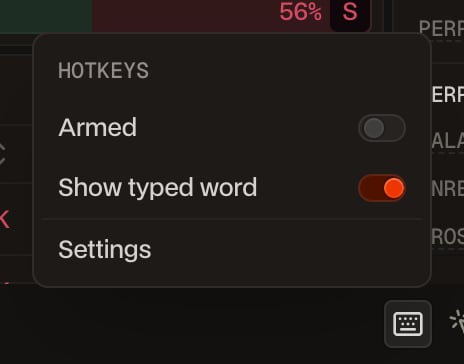
Click the keyboard icon in the status bar at the bottom right of the Trade tab. The menu has three controls:- Armed turns every hotkey on or off. Hotkeys start disarmed.
- Show typed word shows the letters of a word hotkey beside the icon as you type it. On by default.
- Settings opens the Hotkeys window, where you add, edit and delete hotkeys.
The starter set
The Hotkeys window opens with eight hotkeys already set up. Each row shows the key, the side, the action, the size and the order details.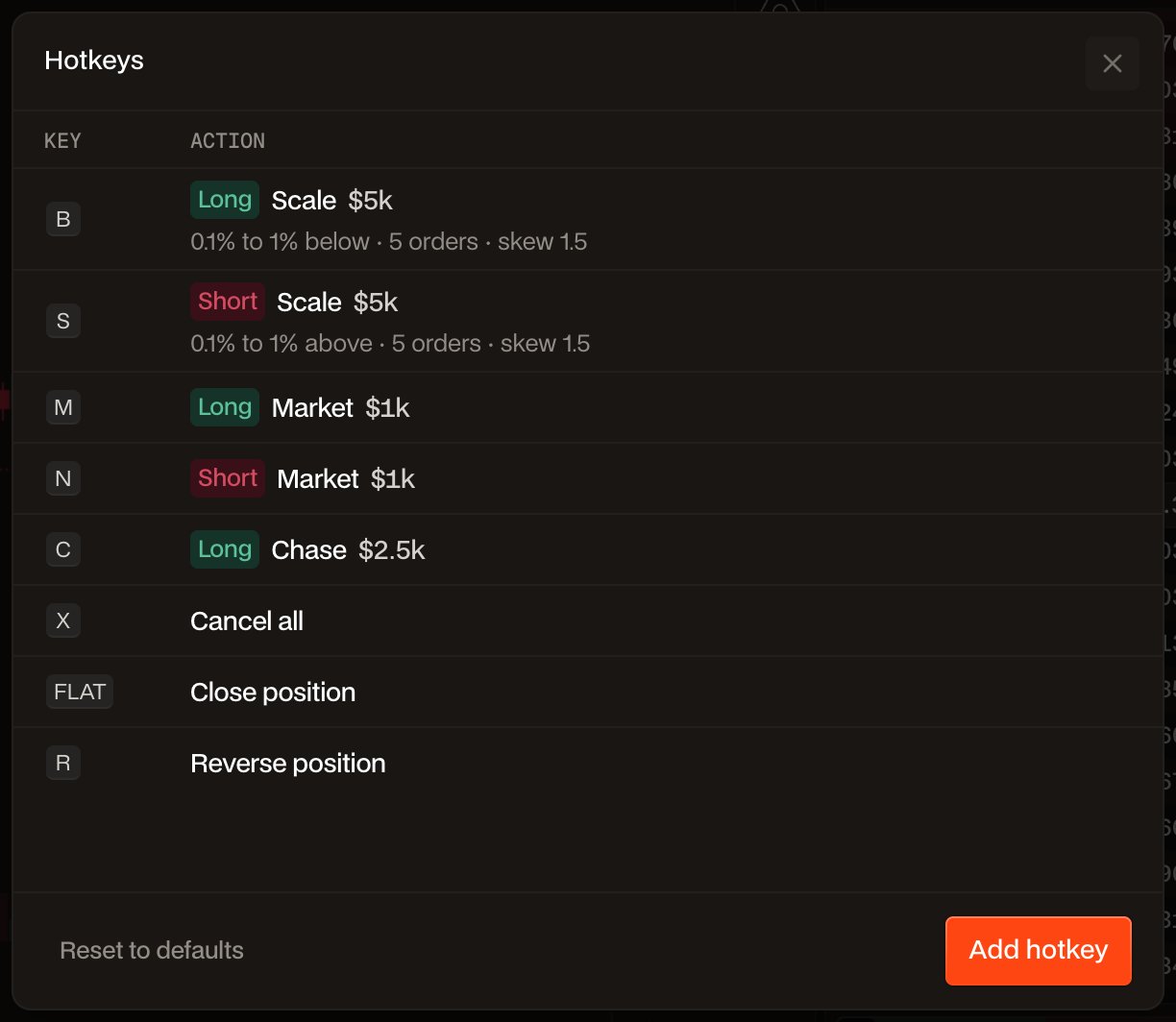
Edit or delete any of them. Reset to defaults, at the bottom left of the window, brings back this set and removes the hotkeys you added.
Add a hotkey
1
Open Settings
Click the keyboard icon in the status bar, then Settings. Click Add hotkey at the bottom right of the Hotkeys window.
2
Set the key
The Key field starts listening, shown in orange. Press a single key, hold a combination such as Shift + B, or type a word of 2 to 8 letters and digits. Press Enter or click Set to keep it.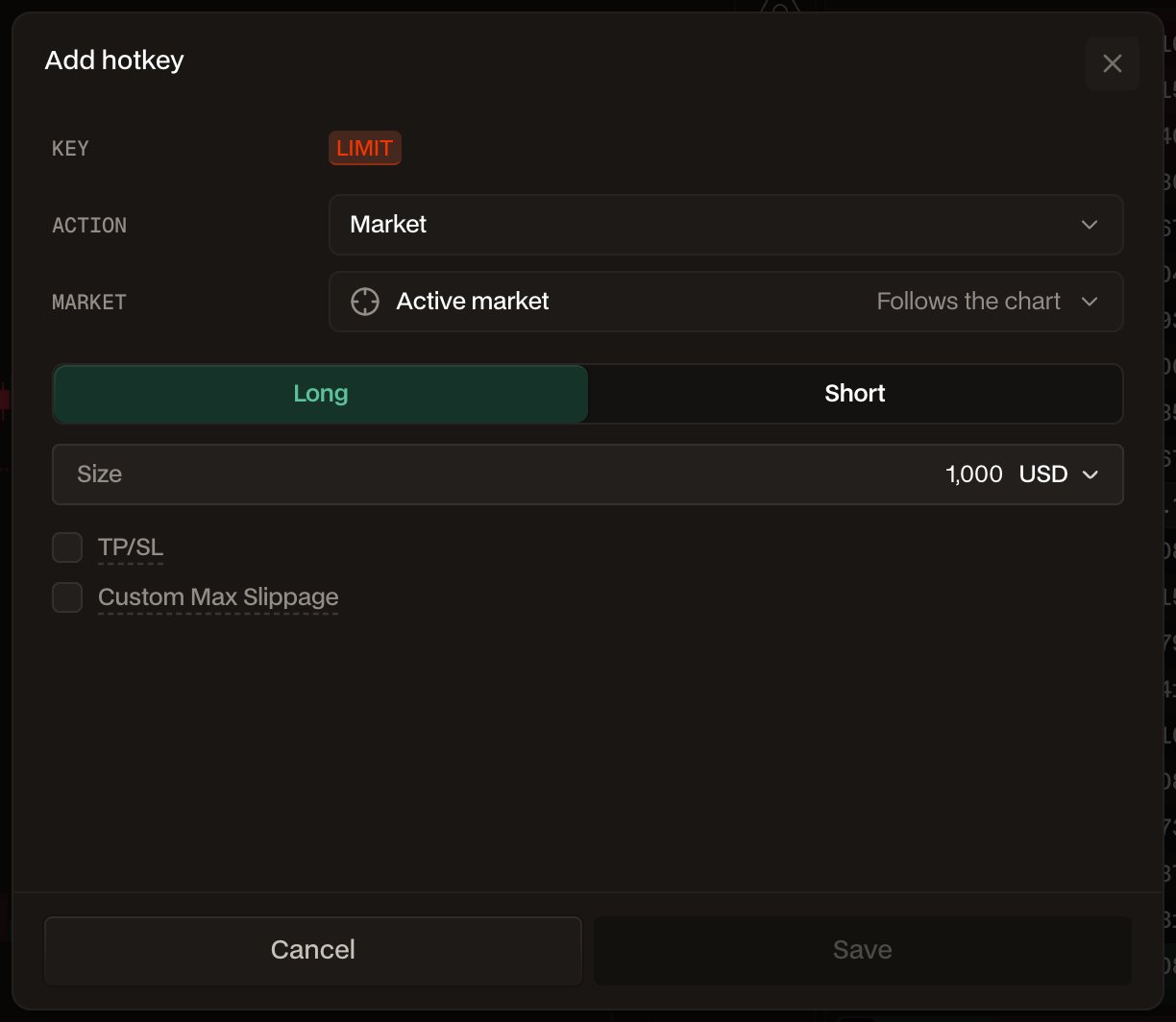
3
Pick the action and market
Choose the action from the Action menu: an order type or a position action. See What you can bind.Market is Active market by default: the hotkey trades whatever market is on your chart when you press it. Pick a market from the list instead to make the hotkey always trade that market.
4
Set the side, size and settings
Pick Long or Short, then the size in one of three units: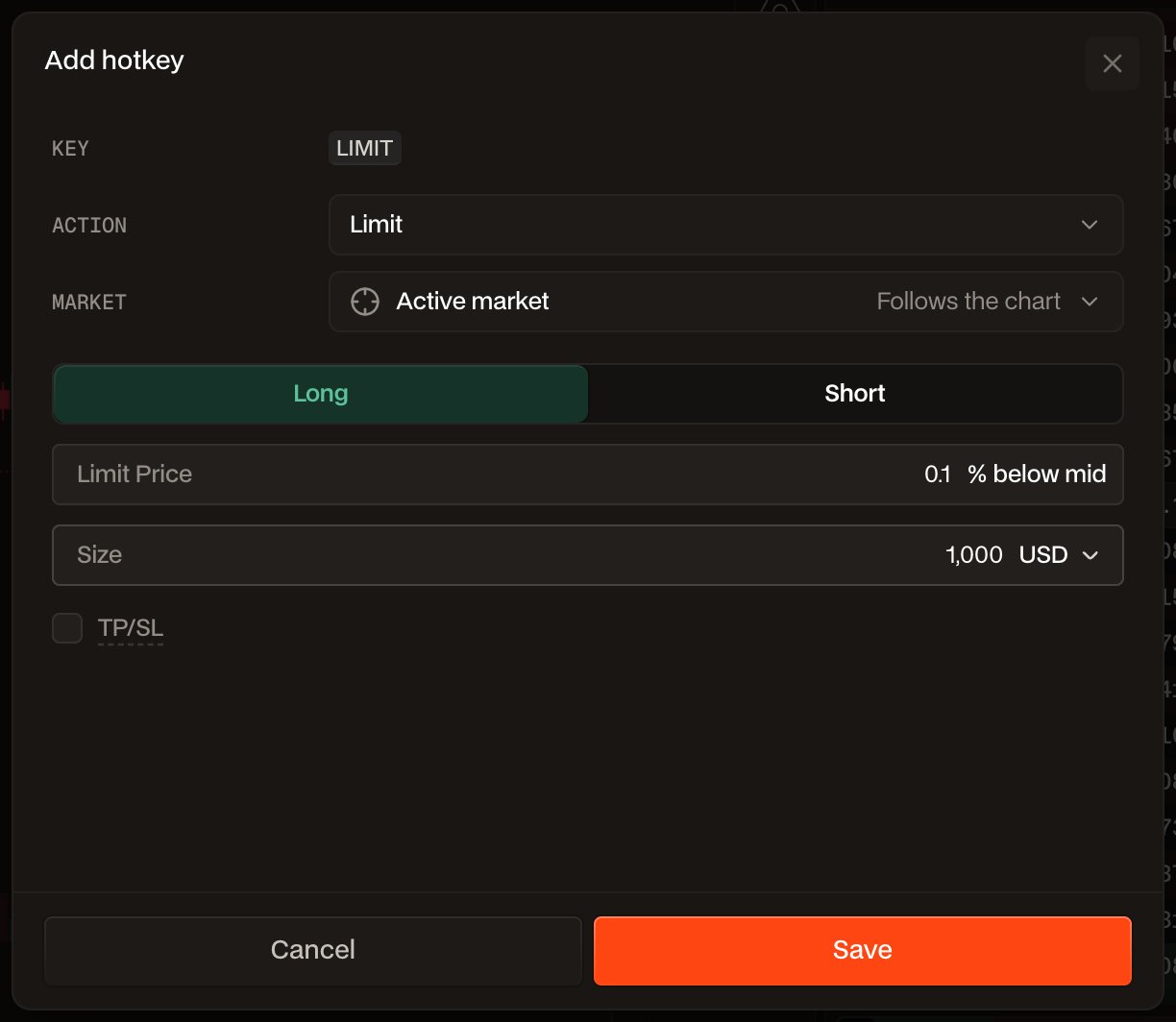
- USD: the order’s notional value.
- Coin: an amount of the asset.
- %: a share of your buying power on that market (available margin times leverage). With Reduce Only on, it is a share of your open position.
5
Save
Click Save. The hotkey appears in the list. Hover a row to show its pencil icon, which edits the hotkey, and its trash icon, which deletes it. To change only the key, click the key on the row and press the new one.
Arm and fire
1
Arm hotkeys
Click the keyboard icon and switch Armed on. The icon turns orange while hotkeys are armed.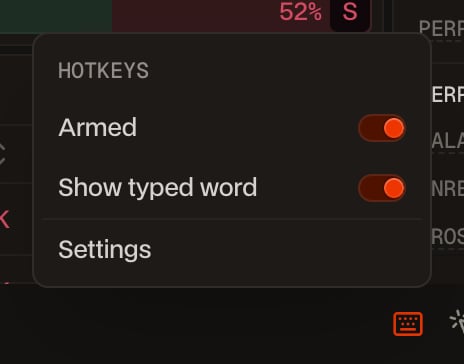
2
Press the key or type the word
Single keys and combinations fire on the press. For a word, type its letters with less than a second between each one. With Show typed word on, the letters appear beside the icon as you type.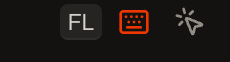
3
Check the confirmation
The order goes out right away, with no confirmation step, and the usual order toast confirms it. If the hotkey cannot fire, a toast names the key and the reason, for example an order below the $10 minimum or no position to close.
What you can bind
TP/SL is available on Market and Limit hotkeys. A percent take profit or stop loss needs the hotkey’s market on your chart, because its price depends on that market’s leverage; use a $ amount to fire it from any chart. A Conditional with Order Type Market or Limit and Stealth on can trigger on either side of the price. Every other Conditional triggers above the price for a long and below it for a short.
Key rules
- Disarmed on every load. Hotkeys start disarmed each time the page loads, and disarm when you leave the Trade tab.
- Never while typing. Keys typed into a search box, an order field or any other input never fire a hotkey. Hotkeys also wait while a dialog or menu is open.
- Once per press. Holding a key down fires once. Release it to fire again.
- App shortcuts are protected. You cannot bind keys the app already uses: A, T, the digits 1 to 9, the G and O shortcut sequences, Escape, Tab, Enter, Space, the arrow keys and browser shortcuts. See Shortcuts. While armed, a hotkey on B takes the key from the layout tabs shortcut.
- Words cannot clash with keys. A word cannot start with a letter that is already a single-key hotkey, and one word cannot start another. With the starter set, “bid” is refused because B is taken.
- Saved in this browser. Hotkeys are stored in the browser you set them up in. Set them up again on another computer or browser.
An armed hotkey sends its order the moment you press it, with no confirmation and no undo. Start with small sizes, check which market is on your chart before using Active market hotkeys, and disarm when you step away.