

Open the Click Trade menu
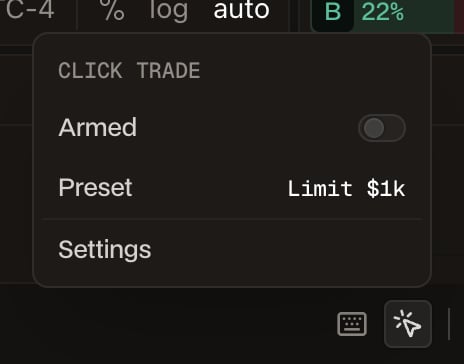
Click the cursor icon in the status bar at the bottom right of the Trade tab, next to the Hotkeys keyboard icon. The menu has three rows:- Armed turns Click Trade on or off. Click Trade starts disarmed.
- Preset shows the preset a click places.
- Settings opens the Click Trade window, where you choose the active preset and add, edit and delete presets.
The starter presets
The Click Trade window opens with four presets, all on Auto side and the market on your chart. The radio button in the Active column marks the preset a click places. Pick a row and click Save to make it active.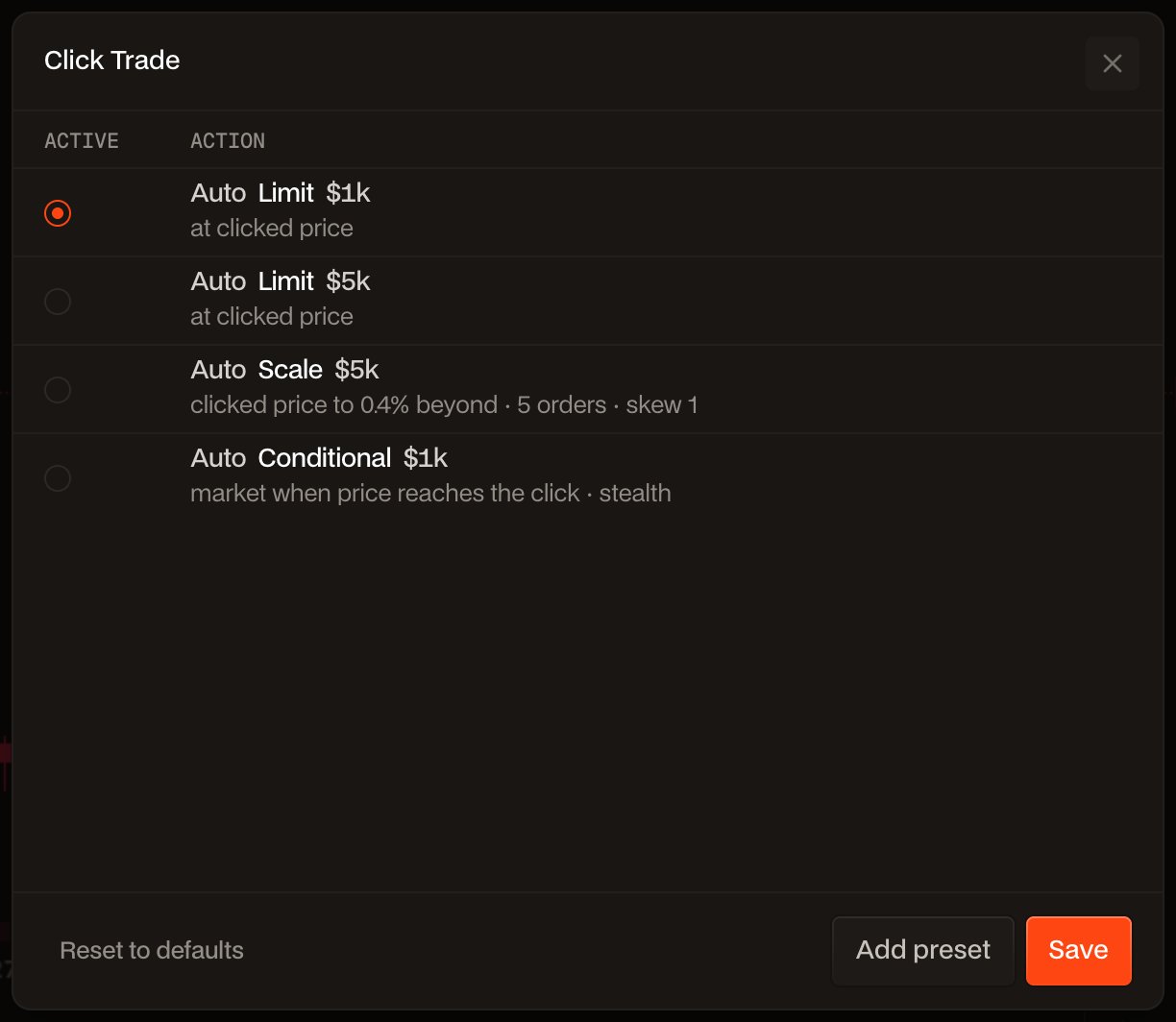
Reset to defaults, at the bottom left of the window, brings back these four and removes the presets you added.
Add a preset
1
Open Settings
Click the cursor icon in the status bar, then Settings. Click Add preset at the bottom of the Click Trade window.
2
Pick the action and market
Choose Limit, Scale or Conditional from the Action menu. For a conditional, also pick its Order Type: Market, Limit, TWAP or Chase TWAP.Market is Active market by default: the preset trades whatever market is on your chart. Pick a market from the list instead to tie the preset to that market. A click on any other market’s chart then places nothing.
3
Set the side
- Auto: the click decides. See How the click sets side and price.
- Long or Short: the preset only places orders on that side.
4
Set the size and settings
Set the size in USD, Coin or % of your buying power, then the settings for the action: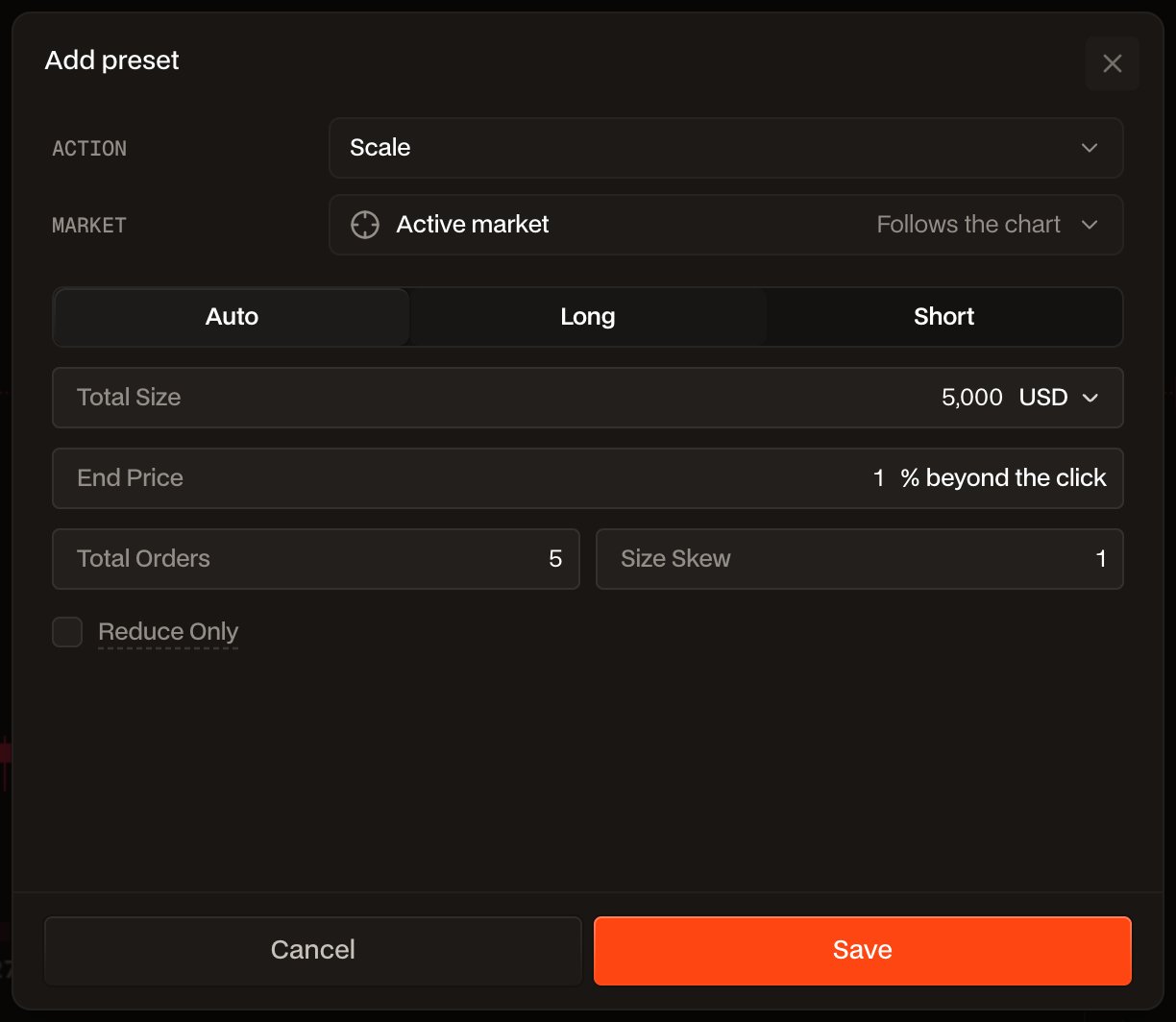
- Limit: optional TP/SL.
- Scale: End Price as a % beyond the click, Total Orders, Size Skew and Reduce Only.
- Conditional: Stealth for Market and Limit, a limit % past the stop for Limit, Duration and randomization for TWAP and Chase TWAP, and Reduce Only.
5
Save
Click Save in the editor. Back in the window, select the new preset’s radio button and click Save again to make it the one a click places.
How the click sets side and price
The price you click becomes:- the limit price of a Limit
- the first price of a Scale, which then runs away from the current price to the End Price
- the trigger price of a Conditional
A preset set to Long or Short only places orders where that is the side a click would take, and a click on the other side places nothing. A stealth conditional Market or Limit is the exception: it keeps its side on either side of the price, and the click sets the trigger.
Arm and click
1
Arm Click Trade
Click the cursor icon and switch Armed on. The icon turns orange while Click Trade is armed, and the plus button on the chart’s price scale is hidden so a click places an order instead.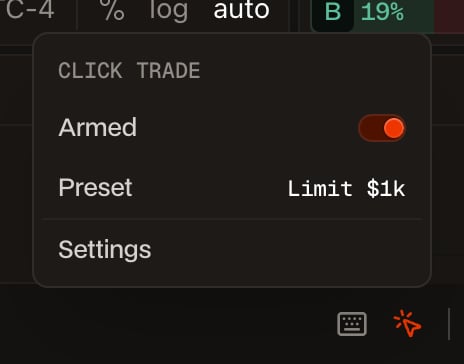
2
Hover to preview
Move the pointer over the chart. A line follows it with a label showing the side, order type, size and price a click would place.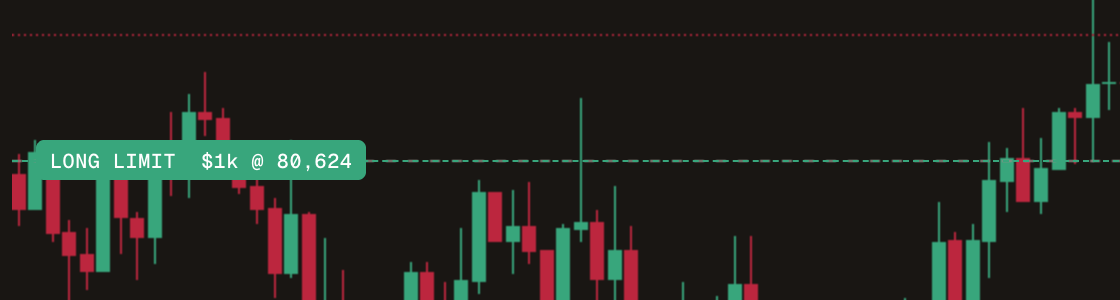
3
Click to place
Click the chart. The order goes out right away, with no confirmation step. The line stays on the chart as pending until the order’s own line appears, and the usual order toast confirms it.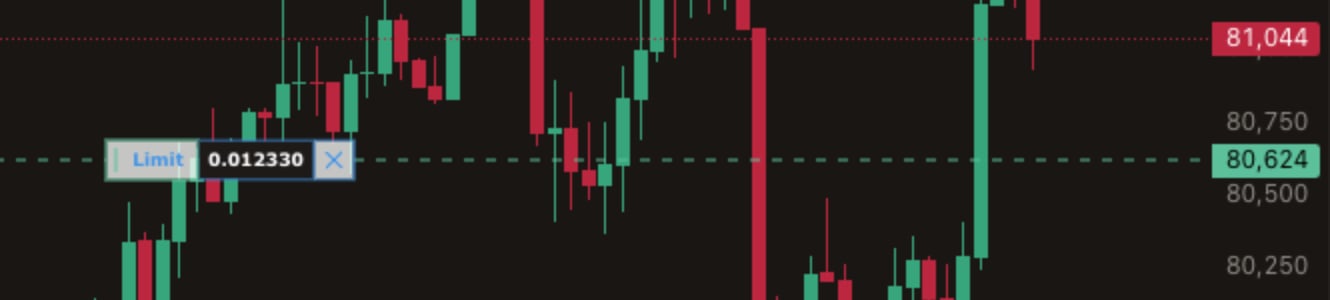

Clicks while disarmed
While Click Trade is disarmed, clicking the chart places nothing. If your cursor is in a price field of the order form, the click fills that field with the clicked price instead.Rules
- Disarmed on every load. Click Trade starts disarmed each time the page loads, and disarms when you leave the Trade tab.
- One order at a time. A click while the previous order is still being sent places nothing.
- Regular or log price scale. Click Trade does not place orders on a percentage or indexed price scale.
- Saved in this browser. Presets are stored in the browser you set them up in. Set them up again on another computer or browser.
An armed click sends its order the moment you click, with no confirmation and no undo. Start with small sizes, check the preview label before you click, and disarm when you are done.